
How to compare accessible office copiers
Ask staff to run a copy and a two-sided scan on the exact machine you plan to buy. Check spoken prompts, keypad options and reach from the first sign-in through collecting the paper.
What three manufacturers document
A feature listed for a product family can depend on firmware, the installed options and the task. Use the original documentation to make a short list of things to verify.
Monochrome · USB keyboard and speech
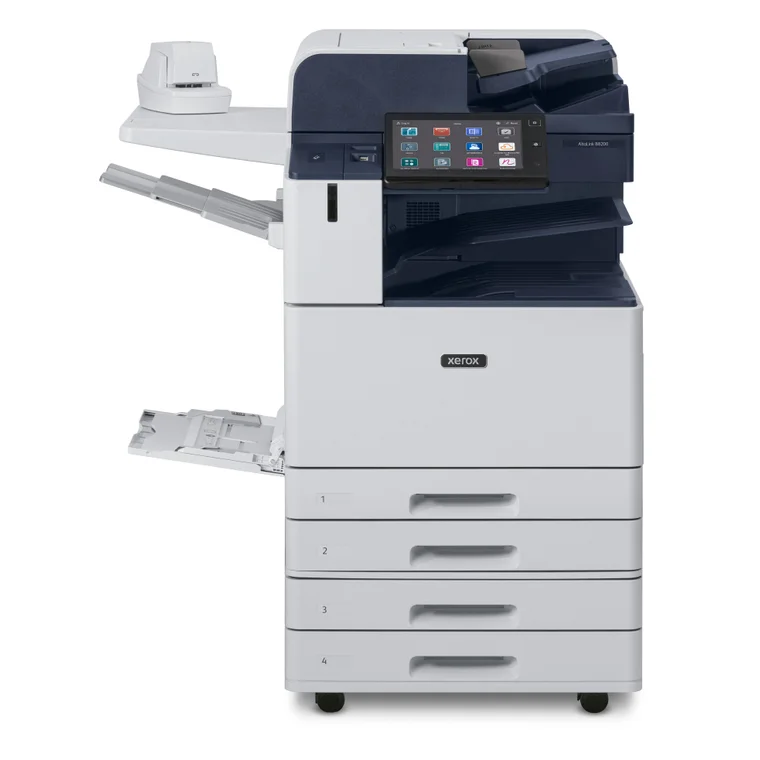
Xerox AltaLink B8255
Xerox documents spoken navigation with a USB keyboard, screen magnification and inverted display colors. A USB headset or audio adapter allows private listening. Some screens and apps lack speech support, and speech output resets when the session ends.
At the demo. Have staff start speech output, sign in and use the actual Copy and Scan screens. Check whether the machine reads job status and prompts in the supported language you need.
Color · optional keypad and voice kit
Canon imageRUNNER ADVANCE DX C5840i
Canon documents Voice Navigation for the C5800 family with the numeric keypad and either the Voice Guidance Kit or the Voice Operation Kit. Ask the dealer to identify the kit in the quote and confirm it is installed on a refurbished unit.
At the demo. Start a two-sided copy from the keypad. Ask the dealer to show which functions the installed kit speaks and how users start and stop guidance.
Monochrome · tilting panel
Ricoh IM 4000
Ricoh lists a tilting display for this family. Its 2021 IM 4000G accessibility report, based on the IM 4000, says the main touchscreen lacked equivalent spoken output in the evaluated setup.
At the demo. Try the display seated at the quoted installation height. If a buyer needs spoken operation, ask for evidence and a demonstration on the exact firmware and accessories being offered.
Xerox’s November 2026 schedule lists $9,087.00 for the B8255H2 with tandem trays for eligible buyers. Price the actual accessories, delivery and setup separately. Check Xerox’s NASPO agreement.
Test the finished setup before accepting delivery
- Reach the controls and the paper. Approach from the side and the front in the planned space. Try the panel, badge reader, document feeder, glass, everyday paper tray and output tray. Test with the final tray cabinet and finisher installed.
- Sign in and finish a copy. Use a regular staff account. Enable your preferred control settings, find the copy count and two-sided option, and collect the finished job. Check which prompts are readable or spoken and whether a headset keeps details private.
- Send and confirm a scan. Use a sample two-sided form. Find the correct destination, start the job, hear or read its result, and open the file at the receiving end. Check what staff can do when an address is unavailable.
- Repeat after signing out. Return to the machine and check which settings are saved for each person and which reset. Ask who will help if a firmware update or a replacement machine changes the controls.
Ask for the report and test the workflow separately
Ask for a dated Accessibility Conformance Report if your procurement calls for one. Check which device, driver, firmware and options it covers. For U.S. federal purchasing, the Access Board publishes criteria for closed functionality, spoken output and the reach of physical controls. Read the U.S. Access Board’s ICT standards.
Ask whether outgoing scans need searchable text or downstream data capture. Send a sample from the panel to an approved folder and check what the receiving team can open and use. If the office extracts and routes fields after scanning, try the same sample in Paige from Ademero. Ademero publishes CopierGuide.
Price the controls and installation you tested
Ask for the proposed model and firmware, numeric keypad or USB accessories, installed trays and finisher, delivery, setup, training and local service on the written quote.