
From a Xerox copier to document approval
The AltaLink scans the document to a shared folder. Your approval system decides who reviews it and where it goes next. Ask your installer to run all three test cases before you buy.
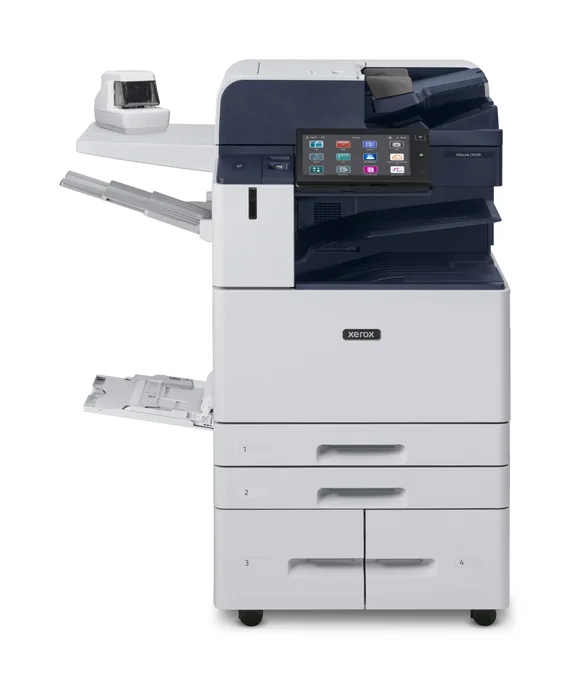
Send a two-sided PDF to an approved folder
For the AltaLink B8100, C8100, B8200 and C8200 families, Xerox documents an SMB file destination in the Embedded Web Server. Give the installer the approved server, share, subfolder and sign-in method. Use a test folder with access limited to the copier’s scan identity and the staff or capture job that needs to read it.
- Add the destination. In the Embedded Web Server, open Properties, then Apps. Under Workflow Scanning, use File Repository Setup to add an SMB repository. Enter the share name separately from the subfolder path.
- Save a workflow staff can recognize. Use the test destination and two-sided PDF settings. Configure file naming so a second scan with the same name preserves the earlier file. Keep the pilot separate from any preset already in use.
- Check from the copier. Use a regular staff login, select the saved workflow, and scan a marked two-sided sheet. Open the file from the receiving folder and check the back page.
Prove the approval rule with a manual upload
Start in a test project while the installer can still check the copier. Upload a PDF and enter the sample contract fields before connecting automatic capture. This gives you a way to tell whether a failed demo broke at the share, field mapping or approval rule.
Set the reviewer and the two outcomes
In Ademero’s Nucleus One, create a workflow in your pilot project. Use Document fields commit when the demo starts with a manual upload and staff enter fields afterward. Confirm that saving the fields again leaves one approval item. For files that arrive with mapped fields already set, test the Document upload trigger.
Make Owner a required field for approval. Connect Approve to the Approved folder and Decline to Needs correction. Configure a non-admin approver and verify they can review that item. Ademero operates CopierGuide.
Test access and decisions
Have someone with each actual role try to find the scan. The assignee should be able to review the document. A user outside the pilot’s authorized groups should be unable to see it. Verify each decision in the document history before clearing the pilot.
Nucleus One workflow instructions · Project and folder permissions · Required fields and approval history
Transfer the PDF and fields together
If staff already enter the document fields, keep the pilot simple and upload your own scans first. For routine batches, set up Paige from Ademero to watch the scan folder from a Windows machine that can read it. Use a test scan job and check extracted values before exporting.
- Map contract ID, vendor and owner to fields in the selected Nucleus One test project. Use a test account with access to that project.
- Export one approved-for-filing sample. Confirm that the project receives the searchable PDF, document type tag and mapped fields. For line-item tables, plan a separate export. The native link carries the mapped fields.
- Run the sample cases below. Check how a duplicate filename, a missing field, and a declined document show up. Have the installer name who will fix each failure during normal operation.
Set up Paige Folder Monitor · Map fields and export to Nucleus One
Copier approval demo worksheet
Use three fictional records in a test project. Record what happened from the copier panel through the final folder.
- Copier and firmware
- Preset and folder
- Reviewer
- Date
PILOT-101
Sample. Two-sided contract. Vendor Pilot A and owner Test Buyer on page 1. Put “revision 7” on page 2.
Pass. One searchable PDF contains both pages. It reaches Test Approver once. Approve moves it to Approved and records the decision.
Result and time
PILOT-102
Sample. Two-sided contract for Pilot B. Upload it to the test project and save the contract ID and vendor with Owner blank.
Pass. With Owner configured as required, Approve is blocked. The record stays available for correction.
Result and time
PILOT-103
Sample. Two-sided contract for Pilot C with the owner filled. Have Test Approver decline it.
Pass. The record follows the Decline branch to Needs correction. The decision appears in document history.
Result and time
Before signing. Scan PILOT-101 again with the same filename and confirm the first PDF is preserved. Assign an owner for each unresolved result and retest with a regular staff login.
CopierGuide · www.copierguide.com/guides/xerox-copier-document-approval-workflow
Ask for an installed quote with the test included
Get a separate price for copier setup, the scan preset, and the receiving workflow. Ask who supports the share and who responds if a document stops moving. Share your installation ZIP and the exact model or models you’re considering.