
Cloud printing and scanning for office copiers
To file scans, start with the cloud folder or library your team uses. To send print jobs from outside the office, start with the print service and its supported devices. A copier can support one route and still need extra software for the other.
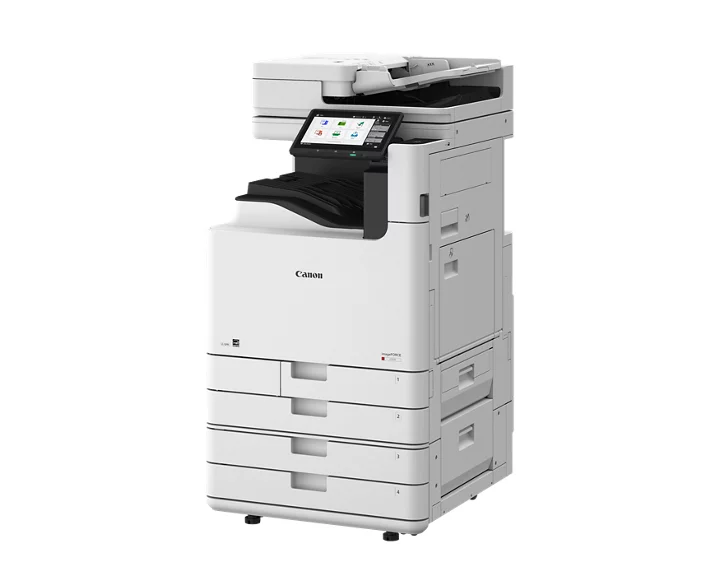
Choose where the job needs to go
- Scan to Google Drive
- Confirm that the panel connector can write to the approved Workspace folder. Use a network inbox and an upload workflow if the panel cannot reach a shared drive. Set up a Google Drive route.
- Scan to SharePoint
- Test a panel app with the exact library or route scans from an SMB folder through Power Automate. Check required columns and permissions as a regular staff user. Set up a SharePoint route.
- Print through Microsoft 365
- Microsoft Universal Print can register a compatible printer directly. Otherwise, a Windows connector can bridge a locally installed printer to the service. Confirm the quoted model, the account’s entitlement, and how you release a print job. See Microsoft’s setup guide.
- Send a PDF by email
- Test how the device authenticates, who can receive files and where scans are retained. Check Microsoft 365 scan-to-email options.
Have the dealer run your real job
Bring a two-sided sample and ask the dealer to use the same model, firmware and type of account you plan to install. Open the PDF in the destination or release the print job from the actual queue. Ask who fixes a failed job and which licenses recur.